Mouse buttons
Left, right, or middle button for the automated action.
Everything below comes from the real Windows UI and publisher notes: interval fields, click options, cursor modes, hotkeys, and the 4.1 additions Random offset and Record & Playback.
The Click Interval group exposes four numeric fields: hours, mins, secs, and milliseconds. A common default shown in screenshots is 100 milliseconds. Stretch the same controls to slower jobs measured in minutes or hours.
Version 4.1 adds Random offset with its own millisecond field (screenshots show 40 ms). Timing jitters around your base interval instead of firing on a perfect metronome.
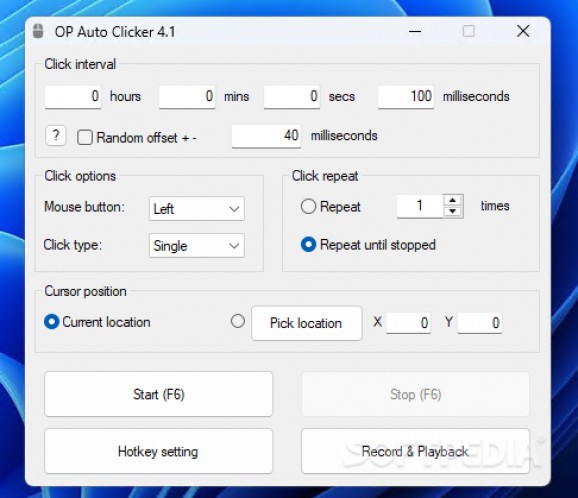
Click Options lets you choose the mouse button (Left is the usual default) and click type (Single is the usual default). Publisher notes and early changelogs also document right click, middle click, double click, and triple click.
Cursor Position offers two modes. Current location clicks wherever the pointer sits. Pick location stores X and Y coordinates so clicks stay on one screen point even if you move the mouse afterward.
Settings can remember the last fixed location between sessions. If a window moves or DPI scaling changes, re-run Pick location. See the coordinate troubleshooting guide.
Choose Repeat with a numeric count, or select Repeat until stopped so clicking continues until you press Stop or the hotkey again. Start (F6) and Stop (F6) sit at the bottom of the window next to Hotkey setting and, in 4.1, Record & Playback.
Hotkeys work while the application is in the background. The default Start/Stop key is F6. Hotkey setting lets you change that binding, a change called out as early as v1.0.0.2.
In 4.1 the bottom row includes Record & Playback for capturing a click sequence and replaying it, beyond a single repeating click.
How the published Windows package behaves day to day.
Open the file and configure. Listings describe it as portable with no mandatory install for everyday use.
Publisher copy highlights a light footprint so long click sessions do not dominate the machine.
Official materials stress an ad-free positioning. Still verify the file hash before you trust a random mirror.
Capabilities tied to documented UI and changelog notes.
| Capability | Detail | Noted in |
|---|---|---|
| Interval units | Hours, mins, secs, milliseconds | UI 2.1 / 4.1 |
| Random offset | ± ms around base interval | UI 4.1 |
| Mouse buttons | Left, right, middle | Publisher + changelog |
| Click types | Single, double, triple | v1.0.0.1 notes |
| Cursor modes | Current location / Pick location X,Y | UI |
| Hotkeys | Default F6, remappable, background | UI + v1.0.0.2 |
| Record & Playback | Sequence capture button | UI 4.1 |
| Session memory | Settings and last fixed location | v1.0.0.1 notes |
Download OP Auto Clicker 4.1 for Windows, then configure interval, position, and F6 in seconds.
Download for WindowsFree · Portable · Windows 10 / 11