Start slow
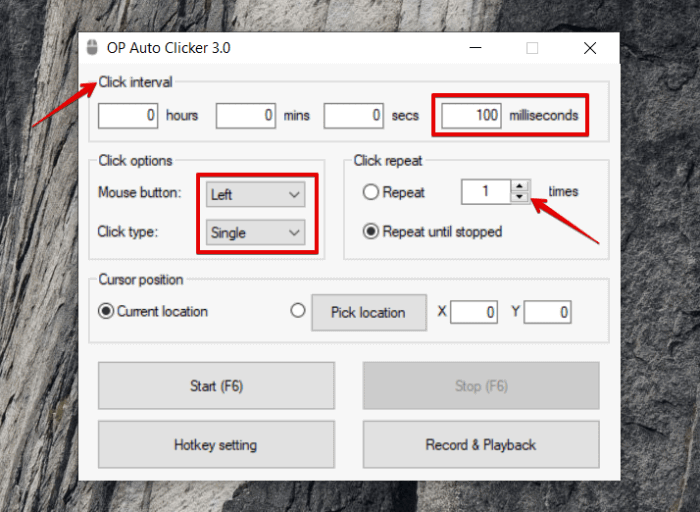
Begin with a few hundred milliseconds so you can stop cleanly. Drop toward 100 ms or lower only after you trust the stop hotkey.
Practical steps for first run, hotkey conflicts, Pick location drift, and antivirus alerts on the Windows 4.1 EXE.
Get from download to a working Start (F6) loop.
Download from this site, then confirm size about 1.13 MB and the SHA256 on the download page.
Double-click the EXE. No installer wizard is required for normal use.
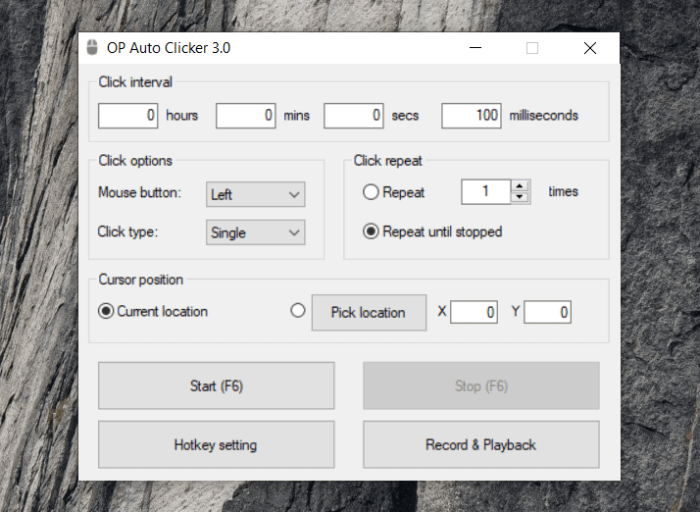
Enter hours, mins, secs, and milliseconds. Choose Left / Single unless you need another button or click type.
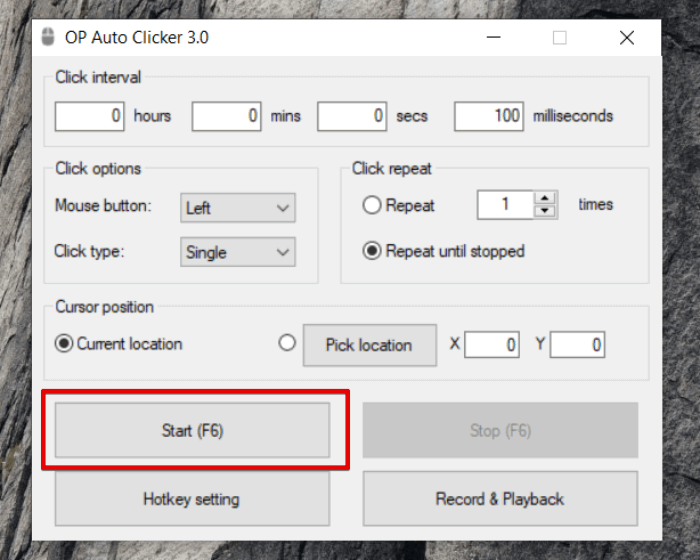
Use Current location or Pick location, then press Start (F6) or the F6 key.
F6 is the default Start/Stop key and is meant to work in the background. Games, IDEs, and browsers sometimes claim the same key.
If Windows Defender quarantined the EXE, F6 will never fire. Restore the verified file first.
Click Hotkey setting in the main window. Assign a free key such as F8 or Ctrl+F9, then confirm.
Skip F5 in browsers, F1 help, Alt+Tab, and Win combinations. Prefer F6 to F12 or a Ctrl+function key pair.
Focus the game or form, press the new hotkey, and watch whether Start/Stop toggles in the OP Auto Clicker window.
Fixed X/Y values go stale when a window moves, a monitor scale changes, or a dialog recenters.
Move the window where you want it and leave it there before picking coordinates.
Choose Pick location, press the Pick location button, and click the exact pixel you need. Confirm the X and Y fields update.
If you change DPI scaling, docking, or multi-monitor layout, capture coordinates again.
For targets you can keep under the cursor, Current location avoids stale pixels entirely.
Heuristic engines flag synthetic input. That complaint shows up constantly for auto clickers, including OP Auto Clicker.
Compare against the SHA256 on the download checksum section.
Only upload builds you obtained from a trusted path. Ignore random cracked copies.
If the hash matches and you still get a PUP-style alert, exclude that single EXE. Do not turn the entire antivirus product off.
Unexpected setup wizards, toolbars, or browser redirects are a stronger danger signal than a heuristic warning on a 1.13 MB portable file.
Keep sessions controllable and policy-safe.
Begin with a few hundred milliseconds so you can stop cleanly. Drop toward 100 ms or lower only after you trust the stop hotkey.
In 4.1, a small ± ms offset softens perfectly regular click trains for tasks that dislike metronomic input.
Keep Repeat until stopped for open-ended jobs. Prefer a counted Repeat when you know the exact number of clicks.
Many online games forbid automation. Workplace policies may ban unattended clicking on production systems. Read trust & security before you leave OP Auto Clicker running unattended.
Browse short FAQ answers or grab the Windows 4.1 package again.